Merging Duplicate Vendors
Last updated: April 8, 2026
This section covers how to manage vendor records in the platform, including how to clean up duplicate entries. If you've noticed the same vendor appearing more than once in your Vendor Settings, the Merge Vendor tool allows you to consolidate those records into a single, accurate entry without losing any associated data.
Navigate to the vendor settings page here.
Vendor Management
Use this process when you have two vendor records that represent the same vendor. Merging will combine all invoices, purchase orders, change orders, transactions, and files from the duplicate into the vendor you want to keep. The duplicate vendor will then be permanently removed.
Before you begin, identify which of the two vendor records you want to keep — this will become the Primary Vendor.
Navigate to Vendor Settings and use the search bar to locate the duplicate vendors.
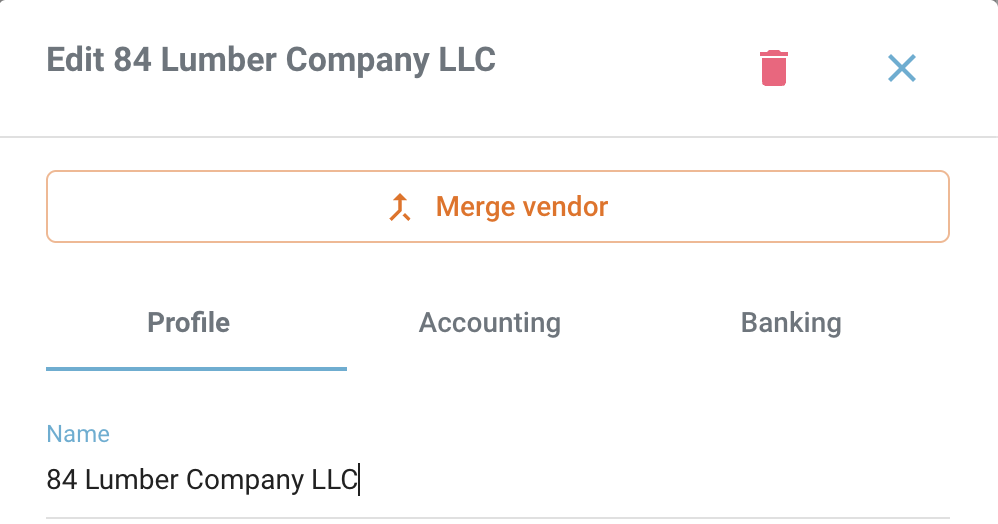
Click on the vendor record you want to keep to open the Edit panel.
Click Merge vendor at the top of the Edit panel.
Ensure you are clicking "Merge vendor" on the vendor name you want to keep.
Merge Vendor
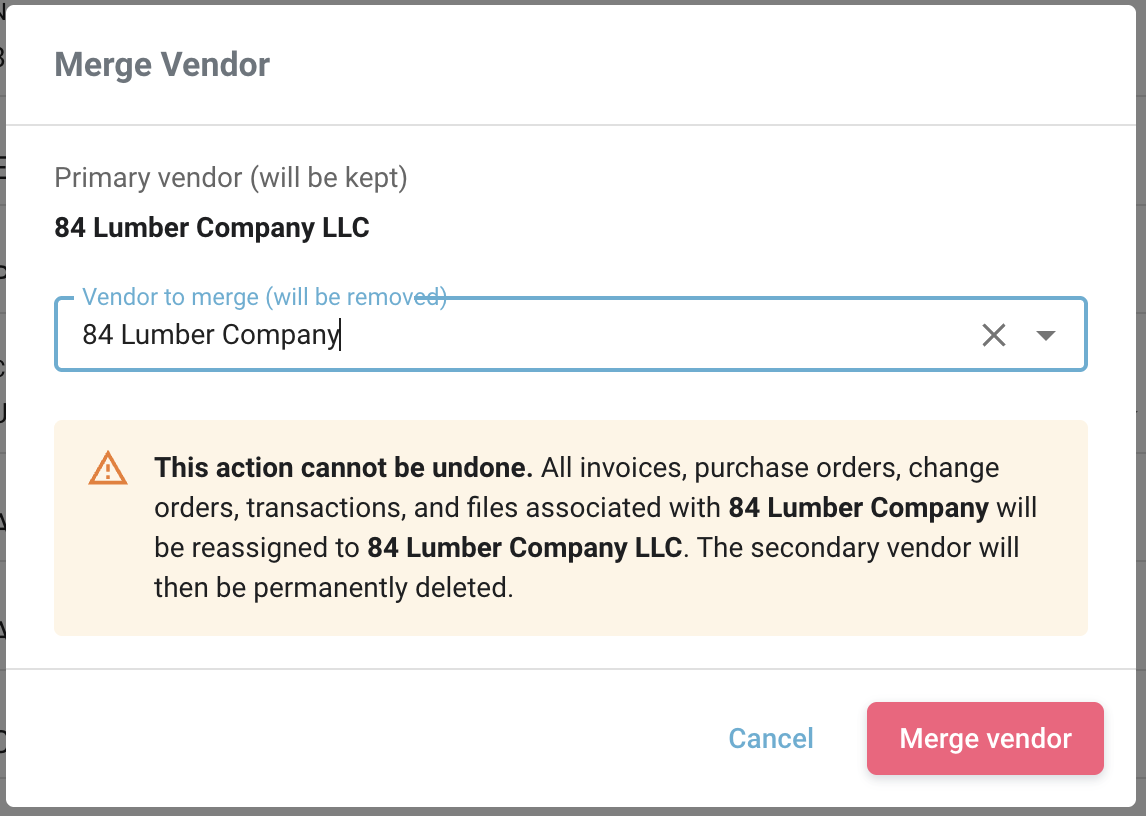
In the Merge Vendor pop-up, confirm that the correct vendor is listed under Primary vendor (will be kept).
Click the Vendor to merge (will be removed) dropdown and select the duplicate vendor you want to remove.
Review the warning message to confirm that the correct vendors are being merged.
Click Merge vendor to complete the action.
Frequently Asked Questions
What happens to the data from the vendor that gets removed?
All invoices, purchase orders, change orders, transactions, and files tied to the removed vendor are automatically reassigned to the primary vendor. No data is lost — it is simply consolidated under the vendor you chose to keep.
What should I do if I selected the wrong primary vendor?
Because this action cannot be undone, you will need to contact support if a merge was completed in error. To avoid this, always confirm both vendor names in the Merge Vendor dialog before clicking Merge vendor.