Uploading Invoices/Bills/Receipts Tutorial
Last updated: December 24, 2025
This article guides you through the process of uploading an invoice, either via email, direct upload, or mobile app sync.
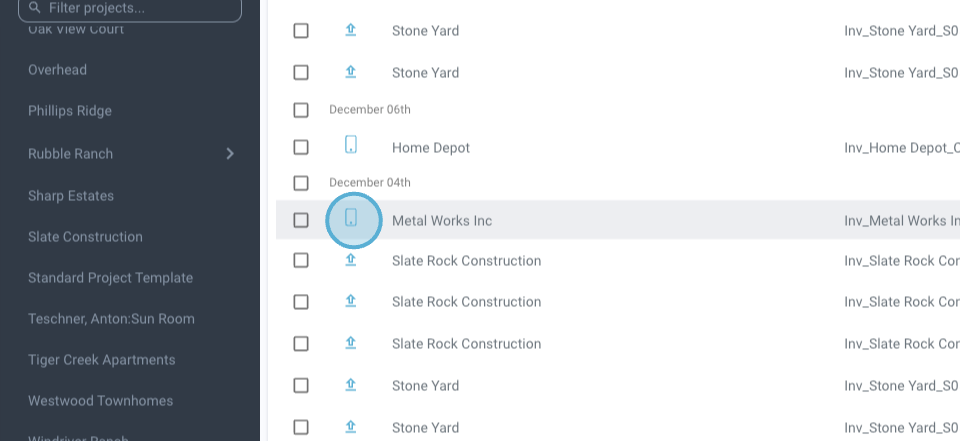
Step 1: Identify the icons that represent invoices received via email.
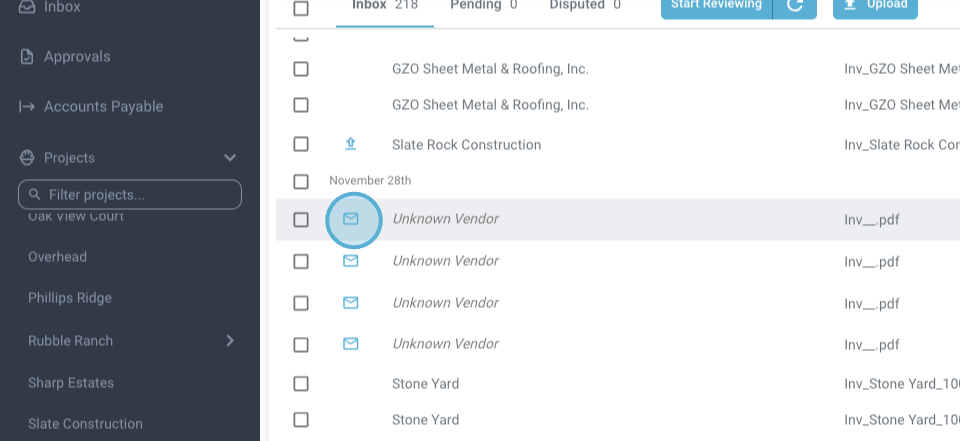
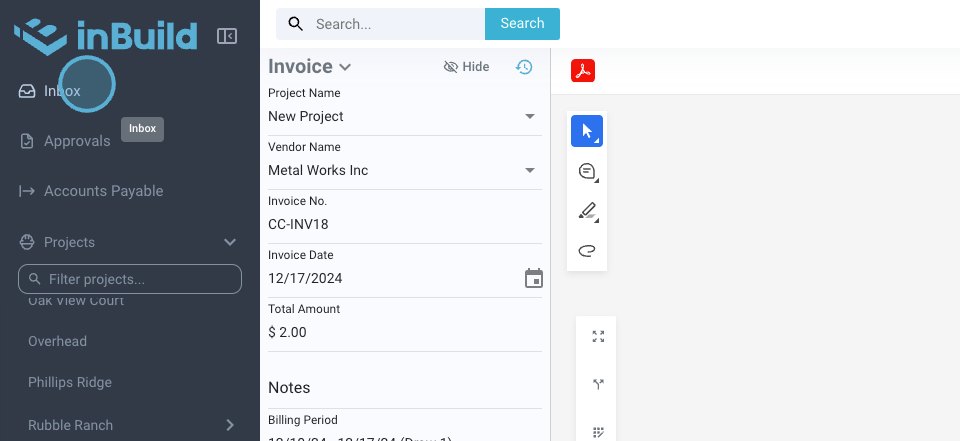
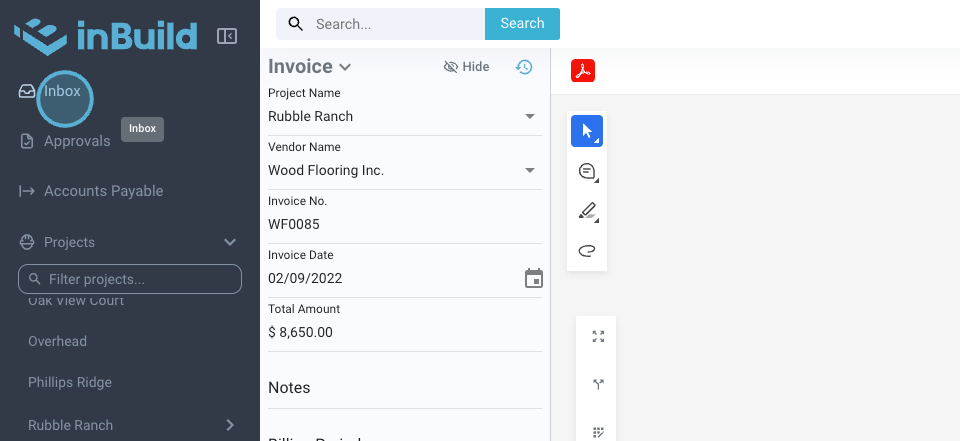
Step 2: Return to the inbox to view the uploaded invoices.
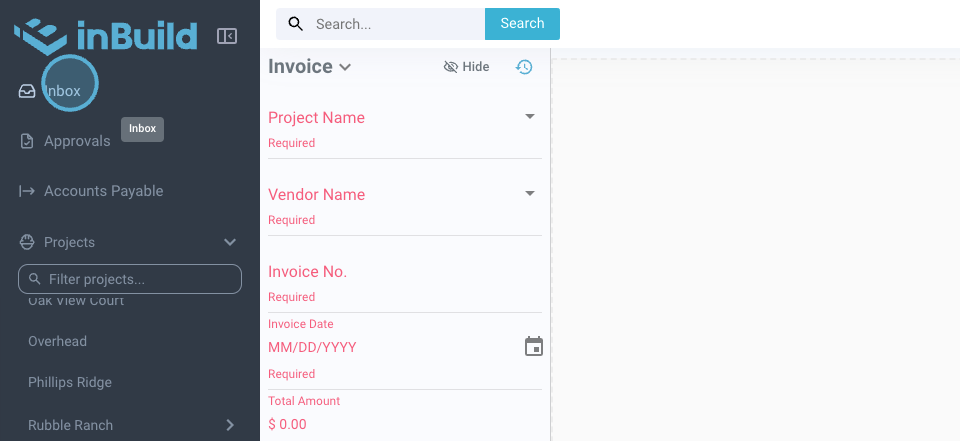
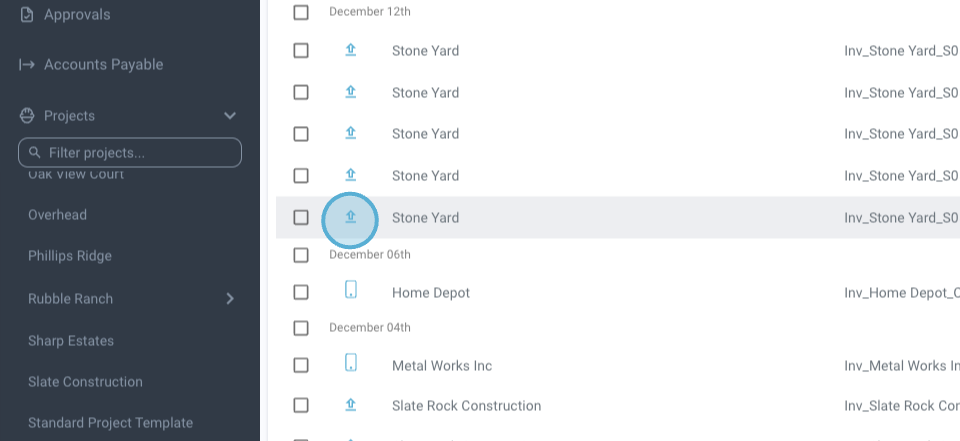
Step 3: Look for invoices that have been synced from the mobile app.
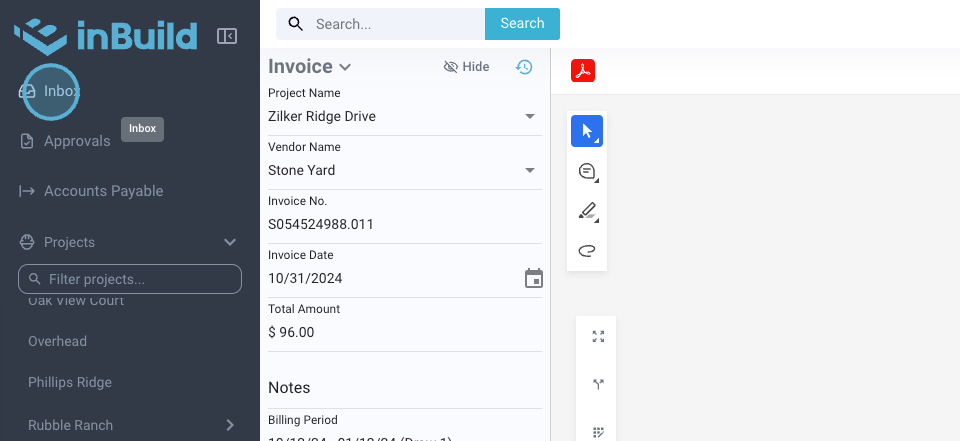
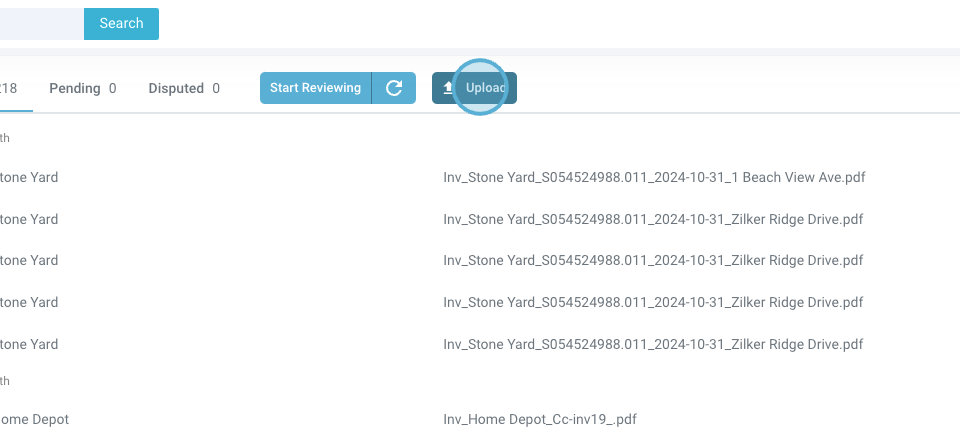
Step 4: To start uploading invoices, hit the Upload button.
Step 5: Open your finder to select the invoice files. Alternatively, you're free to drag and drop the invoices into the designated area.
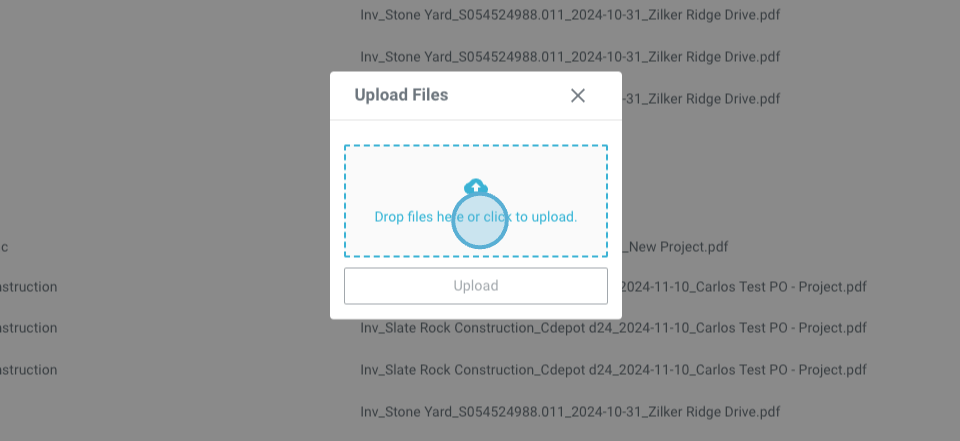
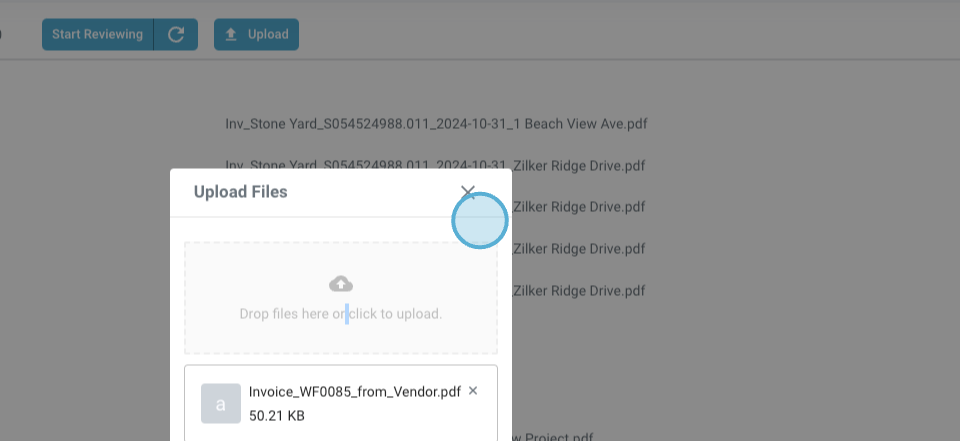
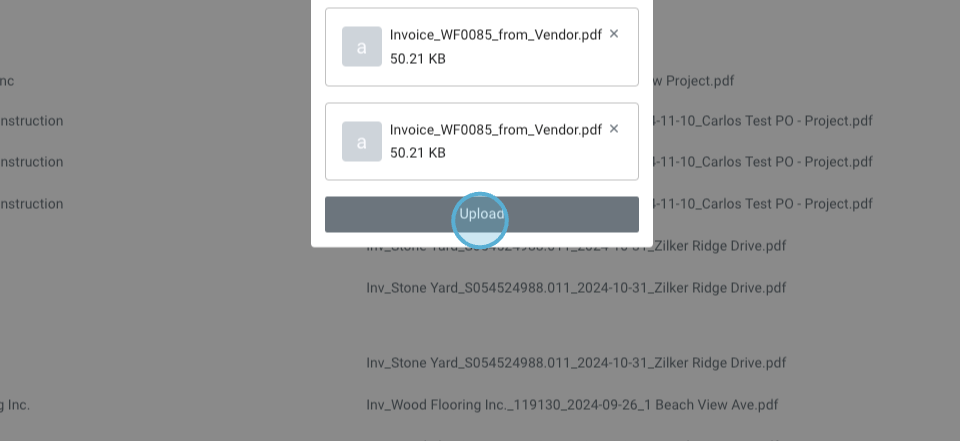
Step 6: Click Upload again. Your inbox will refresh and display the newly uploaded invoices.
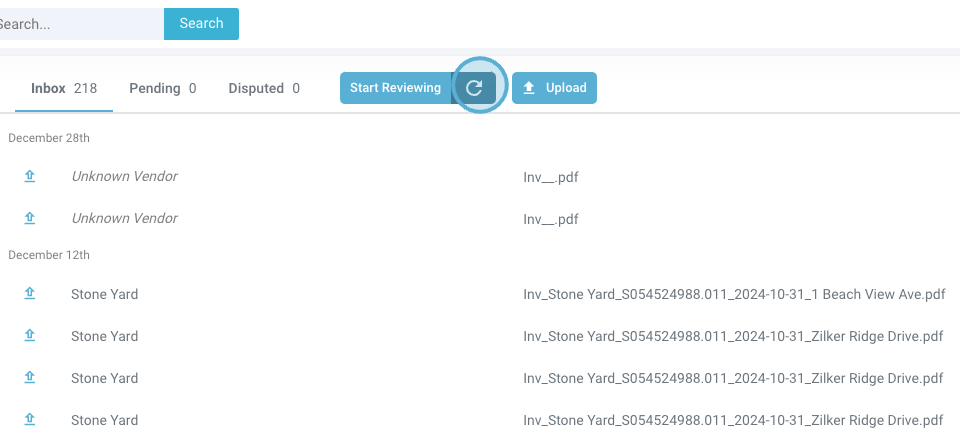
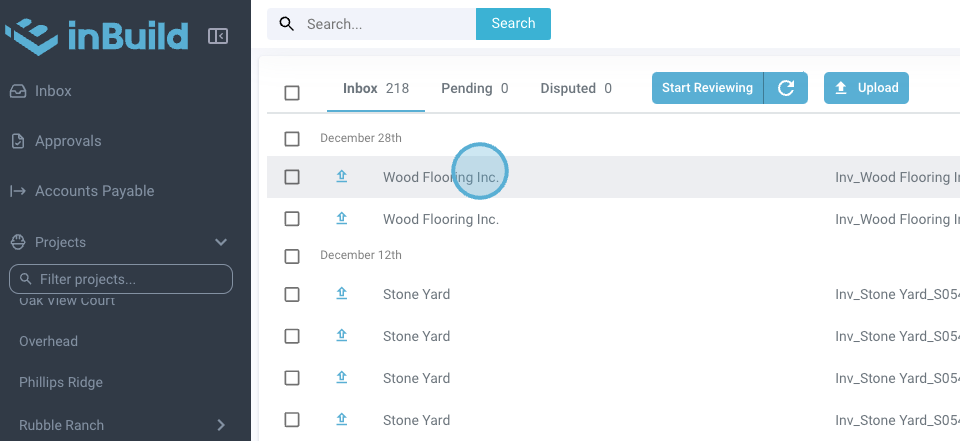
Step 7: If the invoices aren't visible right away, refresh the inbox. The vendor information should now be visible.
Don't hesitate to get in touch if you're unsure about anything.